Configuring the agent
The four tabs that define who your agent is, what it knows, what it can promise, and when it hands off.
Everything your Inquiry Agent does comes from one screen: Agents → your agent. It's split into four tabs — Identity, Your business, Rules and Handoff — and each one answers a different question. The configuration is seen and edited by the Owner and the Admins.
Two things are worth knowing before you start. The agent only knows what you load here — it never fills gaps on its own. And on the right you have the Playground, a WhatsApp conversation with your agent: save a change and test it right there, before a customer does.
Identity
Who your agent is: name, nationality, gender, and how the voice sounds. The preview updates on its own.
At the top is Start from a pack: three starting points (First-person seller, Declared assistant, Closed product) that set How it writes, When it replies and how each reply is sent in one go. Closed product also sets How it sells to Closed product, the minimum intent to Wants to book and no field as Required. Applying changes the draft: you see every change below and it only takes effect when you save. You can also pick one when you create the agent.
-
How it sells. Tailor-made is the agency process: it understands the trip, quotes options and hands off to the seller who closes. Closed product is for a business that sells its own product with fixed dates or slots (a glamping, a surf trip, a tasting): it presents, gives the price and takes the customer to book, and hands off only when they want to book. It does not change your line of business: a glamping is still Lodging.
-
Nationality. It's not cosmetic: it sets the register. Picking Argentina / Uruguay switches the agent to voseo, not just to a flag.
-
Tone. Warm (close: it reacts to what the person said and asks with interest), Professional (dry, just the facts) or Lively (effusive, with emojis).
-
Greeting. The first message of every conversation. You can write your own with
{nombre},{agencia}and{momento}, and choose whether it replaces the agent's greeting, is added to it, or goes out As written: the system sends it exactly as you wrote it, without going through the agent, with an optional button that opens a link (on WhatsApp it shows as a button under the greeting; on Instagram and Messenger, as a link at the end of the text). If the person asked something specific, the agent answers it in the next message; if they only said hello, it adds nothing. -
How it sends each reply. In a single message or in several short ones.
-
How it writes. Words your agent swaps («tarifa» instead of «precio») or avoids, whether it uses a closing period and semicolons, whether lists use a dash or ✅, the length of each reply, whether it asks one question per message, how it names the customer and whether it introduces itself as a virtual assistant. When asked, it always says it is a virtual assistant. The preview runs a test message through the same setting that is applied before sending. For tone notes that are not one of these options («use formal you») there is still Business-specific phrases.
-
When it replies. How long it waits before answering: right away, or between 30 seconds and 5 minutes. The wait counts from the person's last message, so if they keep typing it starts over. It applies to WhatsApp, Instagram and Messenger; on your website chat it answers right away. What it does when the person stops replying is set in Automations.
Speed and timbre only affect voice notes. A more expressive timbre at a slower speed sounds less robotic — use Listen to compare before deciding.
Your business
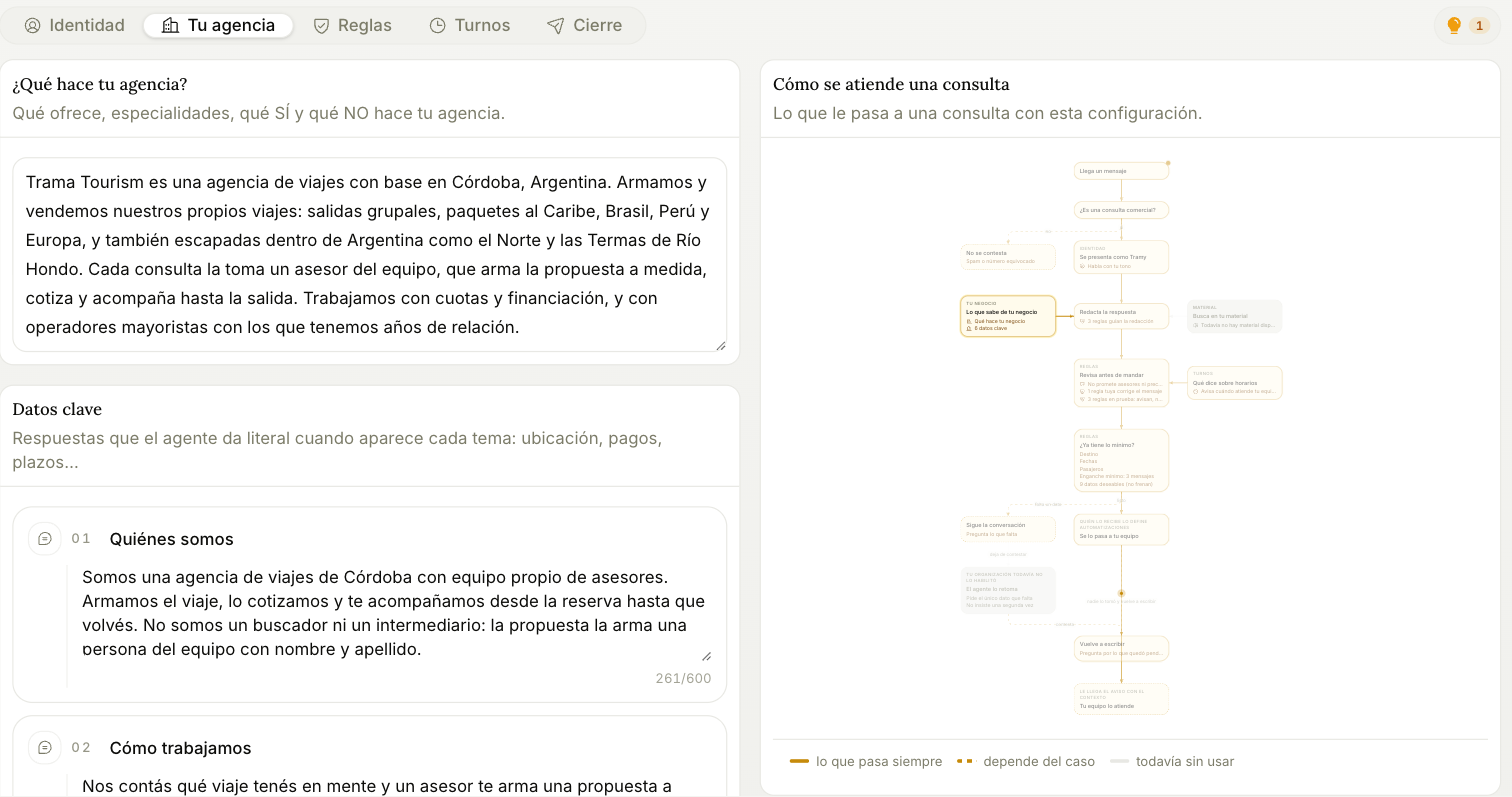
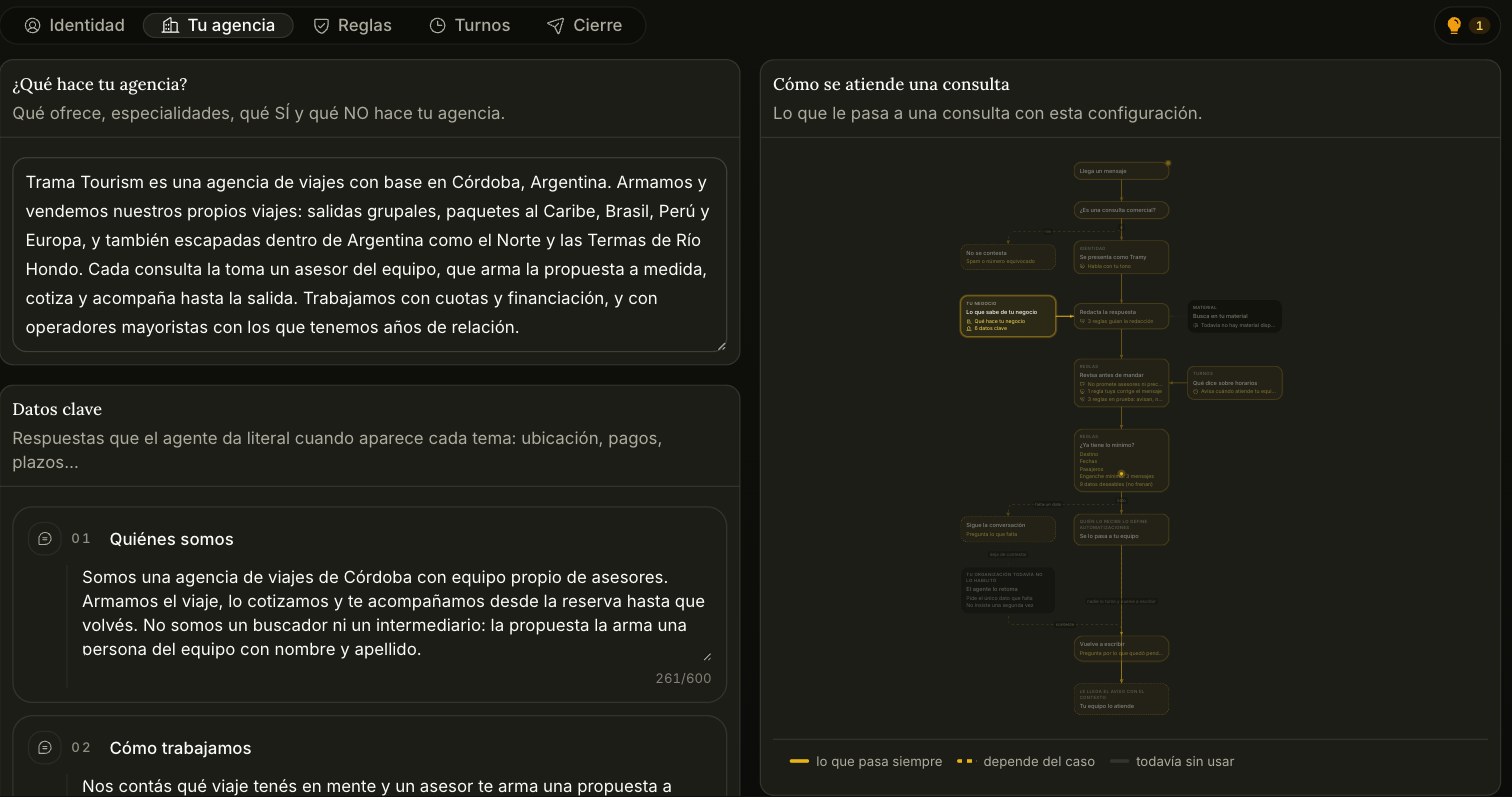
Two blocks with different jobs:
What your business does is free-form context. What you sell, what you specialize in, what you explicitly don't do. The agent uses it to reason, not to quote verbatim.
Key facts is the opposite: answers the agent repeats word for word when a topic comes up — where you're located, how payments work, what your deadlines are. Use this for anything that must always come out the same way. It holds up to 30.
This tab is also where you choose which part of the catalog this agent offers, when you have the catalogue split into groups.
For anything longer than a field — a policy, an operator's conditions, your site's FAQ — there's Knowledge, which the agent searches instead of reciting.
Rules
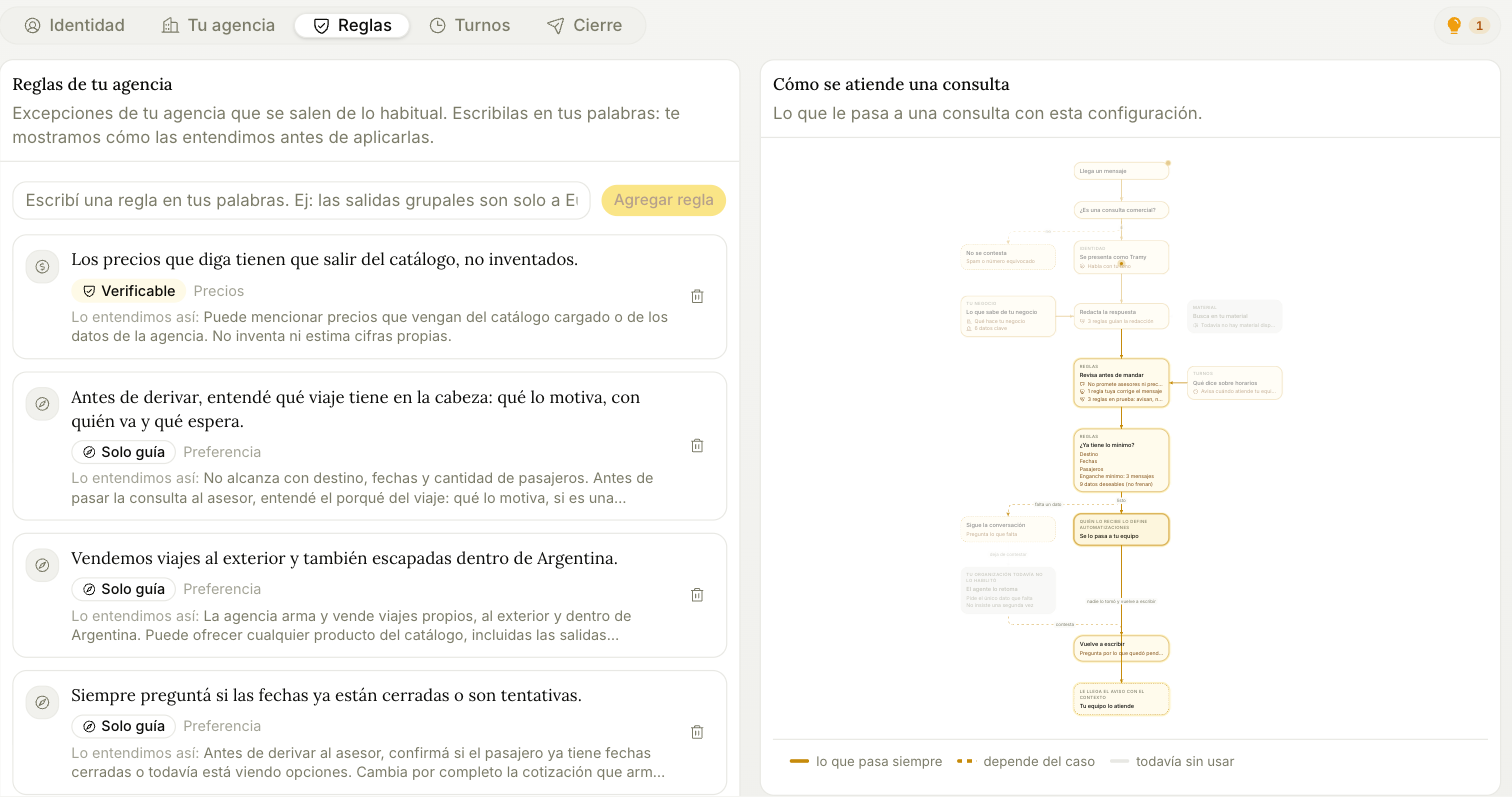
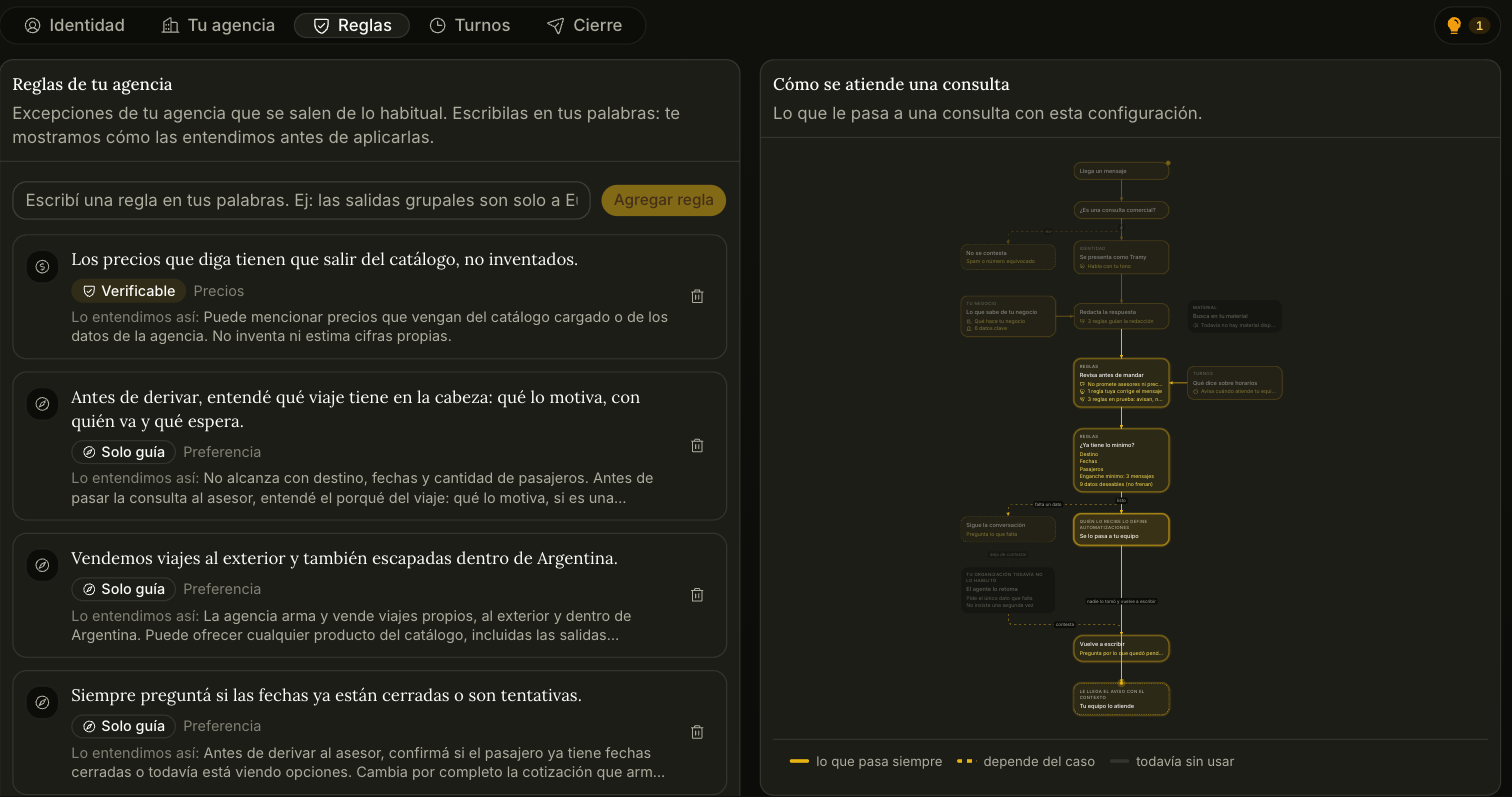
You write rules in your own words and Trama shows you how it understood them, under We understood it as — read that line, because that interpretation is what actually gets applied.
Sometimes what you wrote is not a rule, and Trama tells you before adding it: if it is about how the agent writes it offers Apply in How it writes, if it is a fact about your business Save in Key facts, and if it bundles several instructions Split into separate rules, interpreted one at a time. You can always pick Keep it as a rule.
Then you choose who resolves each rule. There are three levels, and the difference is real:
| Level | Who resolves it | What happens |
|---|---|---|
| Desired | The agent | It keeps it in mind while writing. It guides, it doesn't block |
| Mandatory | Trama | We review every message that touches the topic before sending it |
| Ask | A person on your team | The agent stops, asks, and comes back with the answer |
- Not every rule can be Mandatory. "We don't sell Japan" or "don't promise instalments in dollars" are concrete things that can be looked for in the message before it goes out. "Be warm in the greeting" isn't: there's nothing to check, and Trama tells you so instead of promising a control it doesn't have.
- Before you turn on a Mandatory rule, you see its effect. Trama runs it against the messages your agent already sent and shows you how many of them would have had a different reply.
- Ask needs a condition that can be checked: a number ("if it's more than 8 people"), a day or deadline ("if it falls on a Saturday", "if there are fewer than 48 hours left"), or a concrete fact in what the customer says ("if they say they don't have a visa"). When it's met, the agent tells the customer it's checking, writes to your team and comes back with the answer.
Adding a rule doesn't save it. It stays marked Unsaved until you tap Save on the changes bar. It starts acting as soon as you save it: there's no trial period. If a rule bothers you, lower it to Desired and it stops blocking messages right away.
Each agent allows up to 24 rules, of 300 characters each. If you have several agents, the shared rules apply to all of them and count toward that maximum.
Two more settings live in this same tab:
-
Prices. What the agent can say about amounts:
Option What it does Gives them It says the prices loaded in the catalogue and in Knowledge. It never invents or estimates one that doesn't exist Only repeats the customer's It doesn't say any amount of its own, but it can repeat the one the person wrote Team sends them It doesn't say any figure, even if it's loaded. It lets the customer know a person will send the amounts -
Your team's hours. When someone is available to take a conversation, day by day, in your timezone. Outside that range the agent still answers, and never says you're closed: what changes is that it tells the customer when a person will pick things up. If you have a storefront, its opening hours go in Key facts.
Handoff
When it passes the inquiry to your team, and what the customer gets at that moment.
Minimum to hand off is what an opportunity has to meet before going to a sales rep. Each piece of data — destination, dates, number of passengers, budget — is marked as Required, Desired, If it comes up or Don't ask.
- With no data marked as Required, every inquiry is handed off.
- Whatever doesn't reach the minimum is held back: the agent keeps the conversation going until it gets what's missing.
- The date of birth is there so you can greet the customer on their birthday. It can be marked Desired, If it comes up or Don't ask, never Required: an inquiry is never held back because the customer would rather not give it. With Desired, the agent asks for it once, saying what it is for, and saves it on the customer's record. If the customer leaves out the year, the agent does not make it up: what they said goes to About this person and the date of birth stays empty.
- Minimum intent sets what the customer has to have done besides giving the data: Asks for a quote, Buying signal, Saw the rate or Wants to book. With Saw the rate, the agent gives the published rate of the product they are asking about and hands off only once the customer keeps the conversation going or accepts the next step. If the product has no price loaded, a buying signal is enough.
- Impact on your recent opportunities, at the top of the tab, shows you with Show how many of your latest opportunities would have gone to your team and how many would have stayed with the agent with that minimum. Look at it before saving: a very demanding minimum leaves your team without inquiries.
What gets sent on handoff is what the customer gets when the inquiry goes to your team: a link, a file, or both — a catalogue, a set of instructions, a booking form. For each one you say whether the customer needs it or it's an extra.
Try it before a customer writes to it
Every change is tested in the Playground, to the right of this screen, without creating opportunities or notifying your team. It's explained in Testing your agent.
You only have an agent to configure from Starter on: the free plan doesn't include one. Once you're on a paid plan, your agent answers on the web chat from day one — that channel is on by default, and what it qualifies there draws on your allowance like any other. The warning you may see at the top of the configurator means something narrower: no messaging channel is connected yet, so nobody can reach it on WhatsApp, Instagram, or Messenger. You connect those from Channels.