Catalogue
Upload a flyer, the AI extracts every product in it, you review and publish. And what each field actually changes in how the agent sells.
The catalogue is what your agent knows how to sell. Everything it can quote, describe, or show a photo of comes from here — and nothing else does.
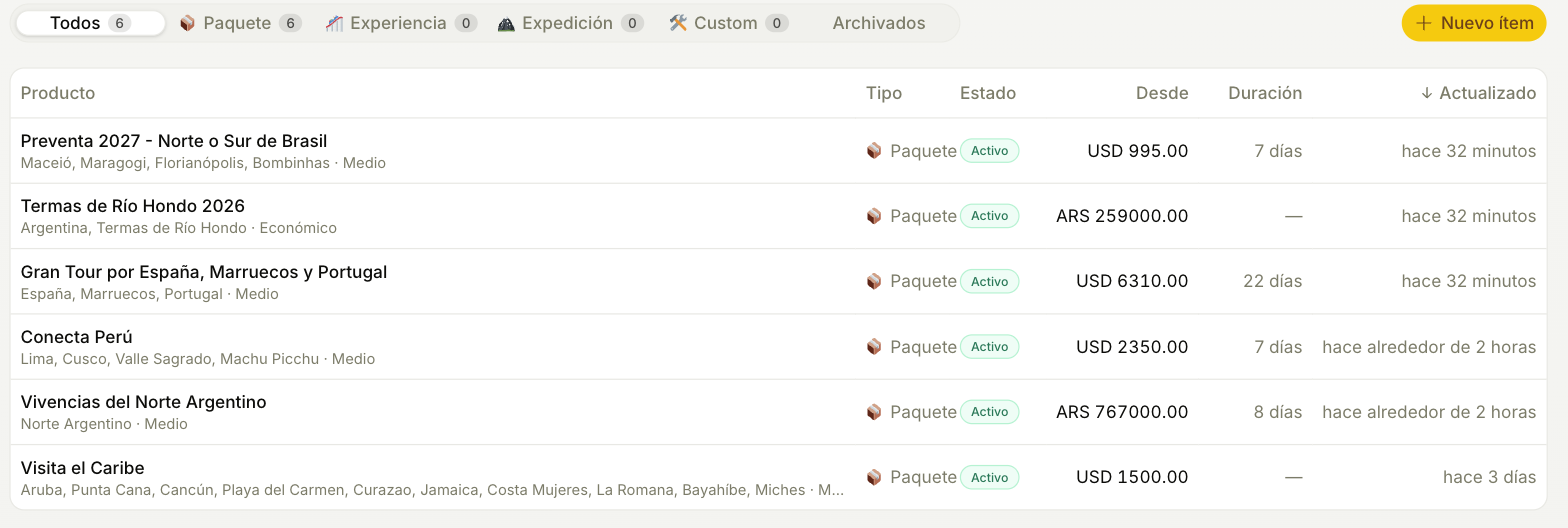
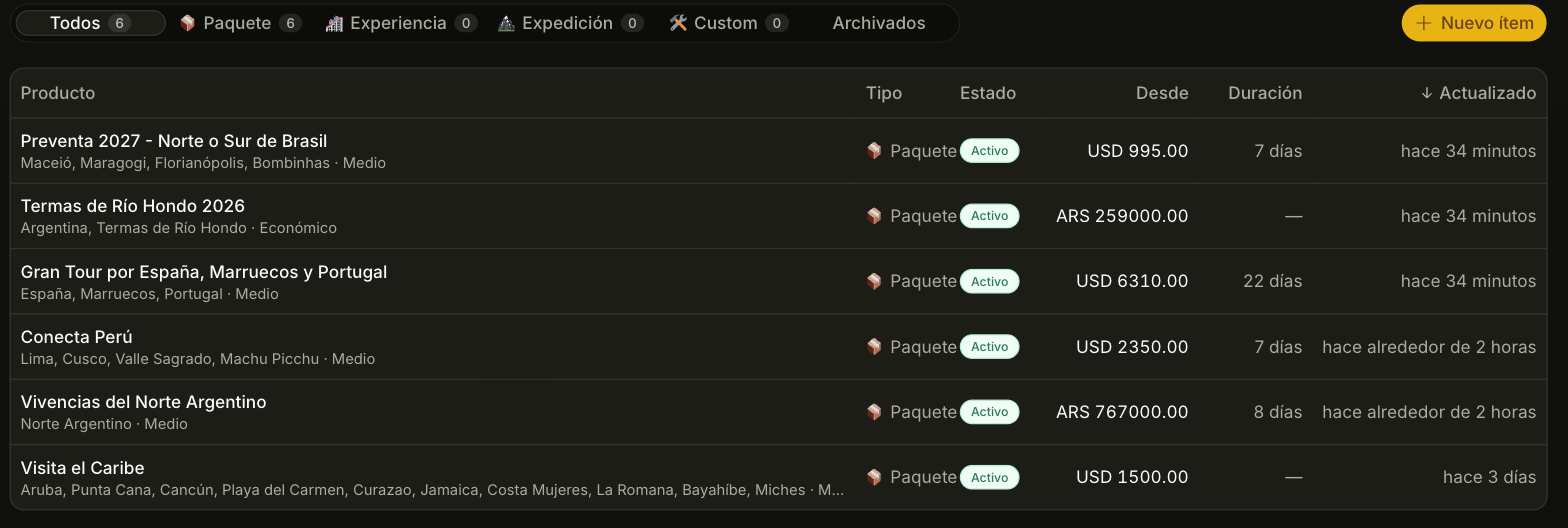
Loading: the flyer does the work
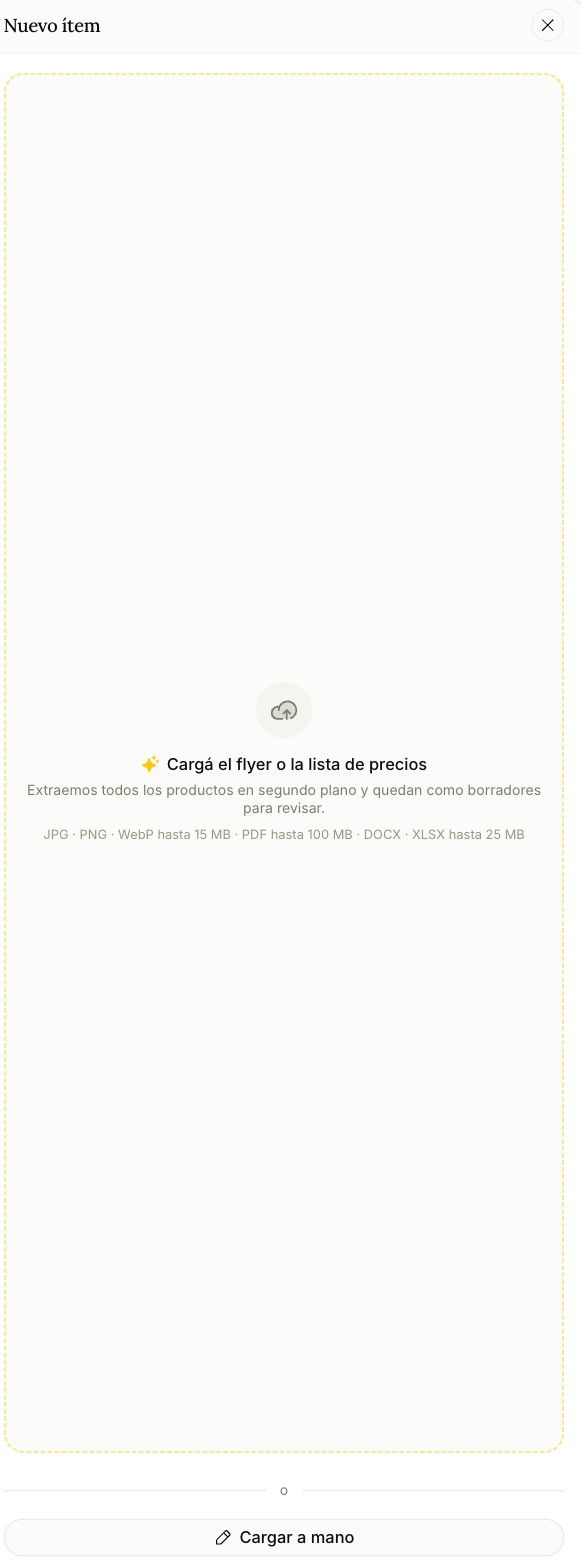
Drop the file
A flyer, a price list, an operator's sheet. JPG, PNG or WebP up to 15 MB · PDF up to 100 MB · DOCX or XLSX up to 25 MB. Files only — there's no pasting a link or a block of text.
It extracts everything, in the background
Not a summary: if the flyer has twenty options, you get twenty products. In a tour, every departure keeps its price in every room basis (double, triple, single) and the whole day-by-day itinerary. You can keep working while it runs. You'll get a notification when they're ready, and if you close the tab and come back it's still going.
They land as drafts
This is the part worth internalizing: an extracted product is invisible to the agent until a person publishes it. The AI never puts words in your agent's mouth on its own.
You review and publish
The draft opens in the same editor as any other item. Fix what came out wrong, complete what's missing, publish. From that moment the agent can offer it.
There's also Add manually, next to the box where you drop the file, for a one-off. That one is born active.
Other ways to load
- Forwarding the file to Tramy on WhatsApp. A flyer, an image, a PDF, a Word file, an Excel file or a video: Tramy sends you back the products it found so you can confirm them, and only then creates them. It can also publish them if you ask.
- "Ask Tramy", inside a product's editor. You tell it what to change and it proposes the edit. Nothing is saved until you save it yourself. Right there you can also ask it to write the short description or suggest the tags, and to load fares, the capacity or dates ("adults pay USD 990 and children 6 to 15 pay 50%"): it only writes a price if you typed the number.
The catalogue is loaded from files. Your website or your Instagram posts aren't read to build it: if your packages are on your site, export them to PDF or take a screenshot and upload that.
One flyer, two travel dates and the same hotel is one product with variants, not two products. A different destination or a different kind of trip is a new product. The extraction already works that way — worth knowing so you don't "fix" something that isn't broken.
What each field changes
Only the title is required. But the fields are not equal — some steer how the agent sells and some are decoration.
These change what the agent finds and says:
| Field | What it does |
|---|---|
| Title | The main search anchor. A product named the way people ask for it gets found |
| Destinations | The other axis of search. It matches by name and by country |
| Price, currency and mode | Critical. Without a price the agent has no number to give — and if it invents one, the system catches it and rewrites the message before it's sent. If on the agent you chose "Team sends them" for prices, it doesn't say any, even if one is loaded |
| Price basis ("per person, double occupancy") | Quoted right next to the amount. Leave it empty and the number goes out naked. If it says "per person" or "per guest" and only adults travel, the agent also gives the group total, calculated by the system |
| Payment terms (instalments, deposit, cash) | The agent says them as you load them. If the material only publishes instalments, leave the price empty and load the plan: the agent says "12 instalments of $390.000" and never the total, unless you mark it as published |
| Budget level (economic / mid / premium) | Orders the search by what the customer said they can spend: that level first. A product for the same destination with another level still shows up when there is room |
Region tags (caribbean, all-inclusive) | Thematic filter. These are themes, not places |
| Duration and capacity | Filters, with tolerance: seven nights also matches someone asking for six |
| Short description | Always searched, and goes to the agent whole |
| Full description | The agent may quote it, but only the first few thousand characters reach it. Put what matters first |
| Includes / Excludes | Excludes are never volunteered — only if the customer asks directly |
| Season notes | Quoted verbatim in the first offer. Write it as you'd want it read out loud |
| Special conditions | Minimums, deposits, cancellation. Goes through as-is |
| What the package includes (which hotel, which airline, which excursion) | The pieces with a proper name. With this the agent answers "which hotel?" instead of dodging it |
| Image groups | The photos and videos the agent sends the customer when they ask for them, grouped by theme |
| Children's rates (what each age band pays) | For a per-person product: "ages 0 to 1: 10% of the rate", "6 to 15: 50%", "babies: free" or a fixed amount. With the table loaded, when a family says how many they are and the ages, the system computes the group total and the agent says it as is, with each child's part. An age outside the table has no total: the agent gives the per-person rate and the team quotes. With no table, the agent never computes children |
| Dates and times (when it's sold) | Fixed-date departures with their status (open, sold out, closed) and spots; the days and times or the nights you sell, with their season; and closures (a holiday, a maintenance week). Once reviewed, the agent answers dates from here: a sold-out or closed departure is never offered, and a product with no date left ahead (not even a sold-out one) stops being offered. Your offers Link shows the upcoming departures and the days and times with their closures on the product page, and the capacity with what you count (people, tents, kayaks), and Tramy changes them when you ask ("close Saturday the 16th"): what Tramy writes because you asked counts as reviewed. Until you review them, it answers from what you write in "Dates and departures" |
| Fares (one price per condition) | Each fare says what a person, a unit or the group costs, in which currency, what it applies to (some days, a departure, a season), what children and residents pay, and the condition as you write it ("showing an ID"). A person takes one fare only: they don't stack. Once reviewed, the agent quotes the fare that applies with its condition, and the system works out the group's total from them. Your offers Link publishes them on the product page as you entered them, never added up (children and residents go under each one). Until you review them, the agent keeps using Price, currency and mode. If Trama filled in the dates, fares or capacity by reading what you had already written, the product says «Inferred data, review it» until you check it and press I've reviewed them. In the catalog list those items carry the Not reviewed badge, and the Data not reviewed notice filters them so you can go through them one by one. When the AI builds a quote from an opportunity and the price is the total your fares produced, the quote starts with one line per fare (2 × Adult, 1 × Child). |
| Capacity (how many fit) | How many fit per booking or per departure, in what you count ("2 to 5 domes", "up to 20 people"). It is the size of what you sell, not what is left: the booking book says that. Once reviewed, the total for a group that does not fit the departure is sent by your team, and your offers Link shows it on the product page |
| How you sell it (your messages per step) | For a closed product (a glamping with dates, a surf trip, a tasting): your opening, your presentation, your price message, what you say when they want to book and the answer to a recurring question, per variant when the product has several (a month, a trip). The agent sends them as they are, changing only the name and the group total. With «the question that picks the variant» it starts there. With no messages loaded, the agent writes as always |
| Material for the customer | The flyer or itinerary as a PDF or image. It goes out when the customer asks for it, also on handoff, or with the reply to the product's ad: you choose that on each product. If the product was loaded from a PDF, you can use that same file. It has to be enabled under Automations → Replies |
These do not affect the agent: the cover and whether it shows on your Offer Link — that's the public micro-site only. The cover images are not the ones the agent sends a customer: those go in the image groups. On your offers Link, images (the cover's and the groups') work best in landscape: a portrait one gets cropped. By chat, group images go out in any format. And internal notes and the operator never reach the agent, which is exactly why they're the right place for what you don't want repeated to a customer.
And one that's a surprise: the type (package, experience, expedition, custom) is a label for you. The agent deliberately doesn't filter by it — filtering by type was hiding a quarter of the catalogue from perfectly good answers.
How the agent actually uses it
Three layers, and knowing them explains behavior that otherwise looks random:
- An index it always carries — titles, destinations, duration and season for up to a hundred products. No prices. It's how the agent knows something exists; it isn't allowed to quote from it.
- A search, when it needs specifics — filtered by destination, theme, budget, capacity or nights. If nothing comes back it automatically widens the search rather than saying "we don't have that", and then it has to verify before offering.
- A fresh read of the product being discussed, every turn. That's why a price change takes effect mid-conversation instead of the agent repeating a stale figure.
Status
| Status | The agent | Your Offer Link |
|---|---|---|
| Active | Offers it | Yes |
| Paused | No | No |
| Draft | No | No |
| Archived | No | No |
| Expired | No | No |
Pausing is for something you still sell but not right now. You don't choose Expired: a product moves to that status on its own when its validity date passes.
Archiving is the delete button. It's recoverable for 30 days; after that the product is gone for good and there's no way to bring it back.
Groups
Groups let you assign part of the catalogue to a specific agent: agent one only knows about these packages, agent two knows about those. Useful when you run more than one agent on different channels, for example one per WhatsApp number.
The default is generous on purpose, and it's what keeps this from backfiring: an agent with no groups assigned sees the whole catalogue, and an item in no group is visible to every agent. Creating a group takes nothing away from anyone until you also assign it to an agent.
- Groups are created in Catalog, Groups view, with New group: a name, the items in it and the agents that offer it. An item can be in several groups.
- An agent with at least one group offers only its groups, plus the items that are in none.
- If you have two agents and only one has groups, the other one keeps offering the whole catalogue, the first one's items included. To keep them apart, each one needs a group of its own.
- Which groups each agent offers can also be chosen on the agent's page, under Your business → Which part of the catalog it offers.